Interactive Segmentation Is Zero-Shot. It Still Isn’t Auto-Labeling.
The short version, before the scene that makes it stick: interactive segmentation — click an object, get its mask — is genuinely zero-shot. You don’t train anything on your class first. What it isn’t is autonomous auto-labeling. A mask is geometry, not a decision about which class in your schema an object belongs to, or whether it belongs in the dataset at all. That decision stays yours. Different pipelines automate different parts of the job, and knowing which does what saves a lot of confusion.
Open a frame from a conveyor line — glass bottles, aluminium cans and paper cups riding past a camera on a grey belt. Pick the one-click mask tool, move the cursor over one of the bottles, and click. A beat later there’s a clean mask hugging the bottle, right down to the pinch of the neck and the curve of the base. The first time you see it, it feels like the tool read your mind.
Look closer and there’s a useful, slightly deflating detail. The mask already carries a label — but that label didn’t come from the model. You picked an active class before you clicked, and the mask simply inherited it; switch the active label from Bottle to Cup and the identical click hands you the identical mask under a different word. The model drew an excellent bottle-shaped mask and had no opinion about what to call it. Somebody still decided the word “bottle” — and, as we’ll see, whether “bottle” is even the right word.
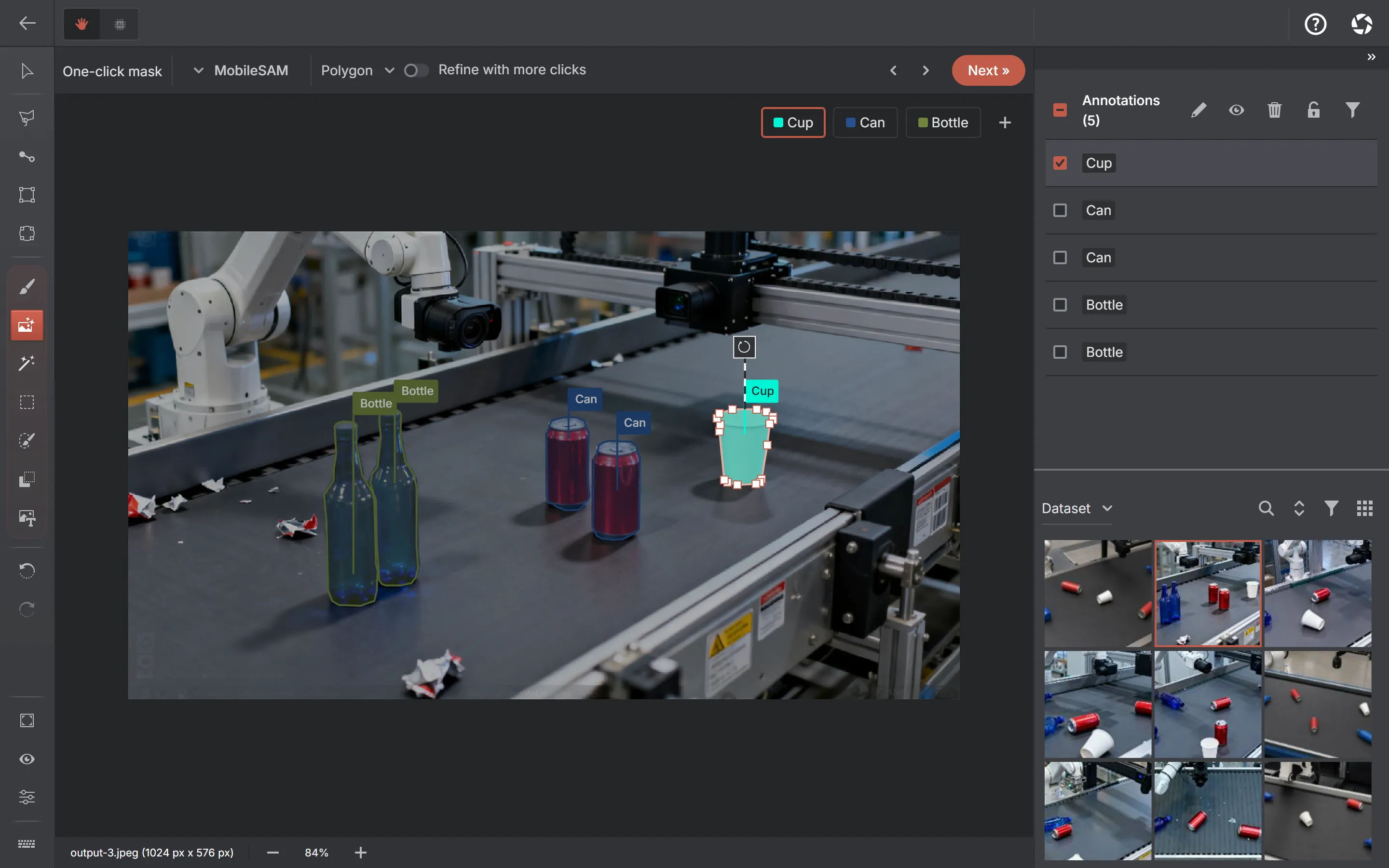
That gap — between a perfect outline and a finished annotation — is the thing I keep coming back to. I spend most of my week inside these tools, and the shortest honest way I’ve found to describe what the AI actually does is this: the model draws the shape, and you decide what the shape is called. It isn’t a flaw in the model. It’s the seam between jobs we weld together whenever we say “the model annotated the image.” Pull that phrase apart and there are three separate jobs hiding inside it.
The three jobs hidden inside “annotate this”
“Annotate this object” sounds atomic, like a single verb. Under the hood it’s a short assembly line with three stations, and it helps to name them.
Discovery
Find the object, or propose candidates worth a look.
- You, with a click
- Grounding DINO
- CLIP/SigLIP 2 + SAM
- Visual Prompt
Geometry
Pin down the exact shape — box, polygon or pixel mask.
- Interactive SAM engines
- Grounding DINO (boxes)
Semantics
Decide which schema label it gets — and whether it belongs at all.
- You
- A prompt or example, for you to confirm
Discovery is finding the thing. Geometry is drawing its exact edges. Semantics is deciding what to call it and whether it earns a place in the dataset. These are genuinely different problems, and the part that trips people up is that different models are good at different ones.
Interactive segmentation is superb at the middle job and deliberately quiet on the other two. It’s power steering, not a self-driving car: it removes much of the physical effort, but it doesn’t decide where you’re going.
What interactive segmentation actually does
The interface is almost aggressively simple. You give the model a spatial prompt and it hands back the geometry of whatever sits under it. Upstream, Segment Anything can be prompted with points or boxes; AnnotateIt’s one-click tool works with clicks: a positive click on the thing you want, a negative click on the thing you don’t. Click a can, get the can. Click again on a reflection on the belt it wrongly swallowed, this time holding the negative-click modifier, and it lets the reflection go.
There’s a reason the second click feels faster than the first. The moment you pick the one-click tool on an image, the model runs its expensive step once: an image encoder turns the whole picture into a set of features. That’s the part that can make you wait on a large photo. Every click after that is a lightweight decoder reading those cached features through the lens of your prompt, which is why refinement feels close to instant even when the first mask missed. You’re not re-encoding the image each time; you’re asking a cheap question of an expensive answer you already have.
Point
A positive click says “this one.”
First mask
The model returns its best guess almost immediately.
Refine
Positive clicks for what it missed, negative clicks for what it grabbed by mistake.
Accept & label
You assign the label. The default output is an editable polygon.
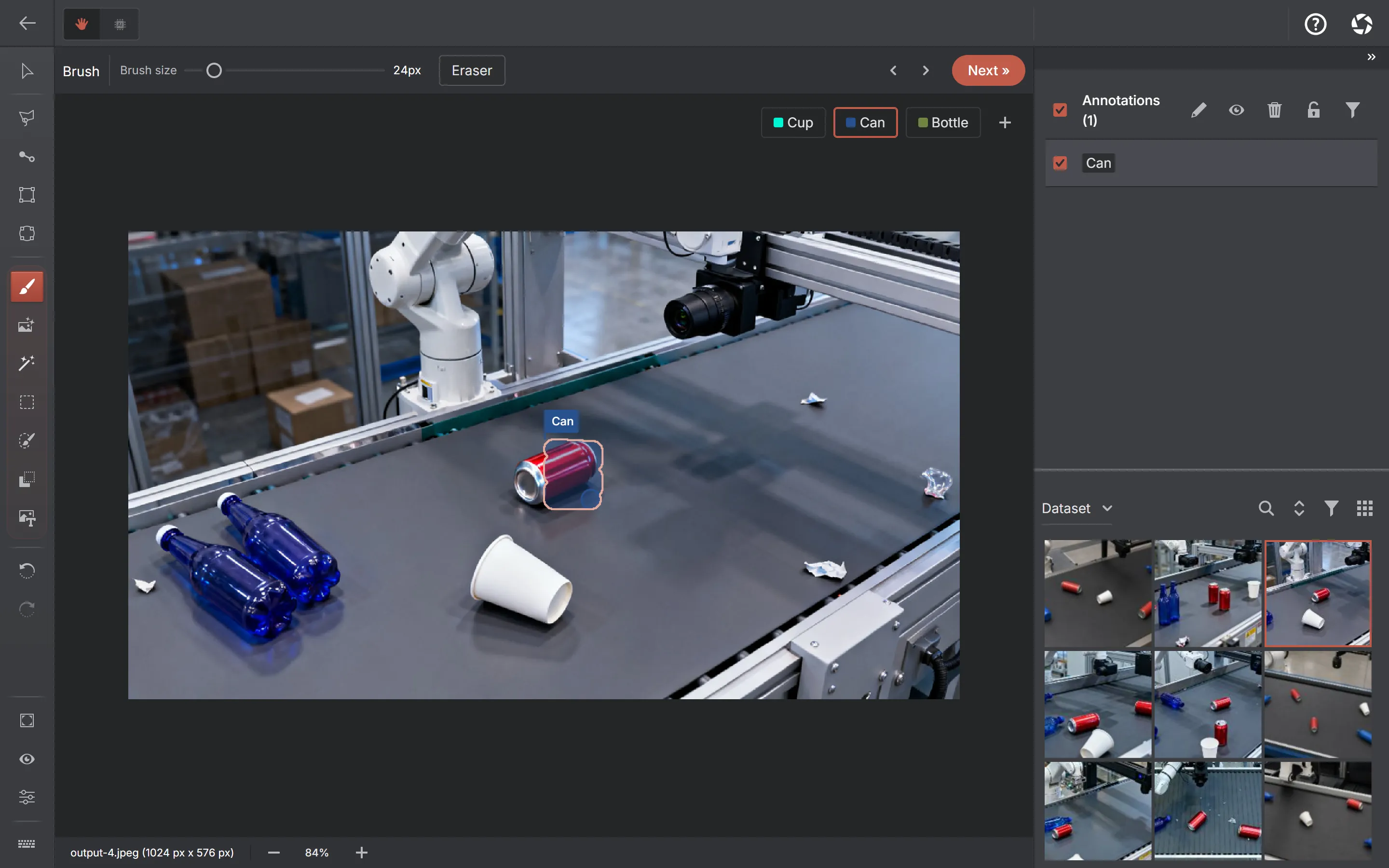
The result isn’t a special “AI object” with strings attached. The instant you accept it, it is an ordinary annotation: by default, a polygon whose vertices you can drag. Choose Mask output when you want the model’s exact pixels and Brush/Eraser cleanup instead. The model got you to a good shape in one click; everything after that uses the same editors as manual work.
Why “zero-shot” is a real claim here
“Zero-shot” gets thrown around loosely, so it’s worth pinning down what it actually buys you. It means you don’t have to collect a training set for your class and fine-tune a segmentation model before the tool can outline your object. Point at a forklift, a solar panel, a weld seam, a circuit board, a species of orchid the model was surely never told the name of — and it still produces a plausible mask. The model was trained, heavily, in advance. You just didn’t have to teach it your specific thing.
Sources: Meta — SAM 2Segment Anything
That’s a large, real convenience, and it’s just as easy to oversell. Zero-shot doesn’t mean infallible. Thin structures — wires, railings, a bottle’s straw — are where masks fray. Occlusion confuses it: a can half behind a bottle can come back as two blobs or one greedy one. Ambiguous clicks are ambiguous to the model too. Click on a capped bottle and it has to guess whether you meant the bottle, the cap, or the two together, and it won’t always guess your way. None of this makes zero-shot a lie. It makes it a strong starting point that still wants a human eye, and a label schema it can’t see.
Why a perfect mask can still be an incomplete annotation
Now the other half of the story. Even a flawless mask hasn’t answered the question your dataset is really asking. Look at what each kind of prompt is saying underneath:
- A click says: this one. That specific object, right here.
- A text prompt says: things that match this description, wherever they are on the image.
- A dataset label says: store this result under this exact class ID, following this project’s rules about what counts.
Those are escalating levels of commitment, and only the last is a decision about your dataset. This is where “bottle” stops being simple. Suppose the model does, in some internal sense, recognize a bottle. It still doesn’t know whether your schema calls the class bottle, container, or glass_bottle. It doesn’t know whether the cap counts as part of it, or is its own class. It doesn’t know if you annotate the crushed bottle at the edge of the belt or skip it as litter, where a juice carton goes, or that the line lead decided last week that anything smaller than forty pixels gets ignored.
A semantic label isn’t an English noun the model can look up. It’s a contract the dataset’s owner wrote, and a good half of that contract is about edge cases no amount of pixel-gazing will reveal. A computer is not going to intuit that a dented can still counts as a can, or that the paper cup belongs under cup and not bottle, because those are policies, not facts about the pixels. This is exactly the part that stays human — not because the model is dim, but because the decision was never in the picture to read off in the first place.
How AnnotateIt splits the job across tools
Once you see annotation as three jobs, a tool list stops looking like a model zoo showing off and starts looking like what it is — different automation for different links in the chain. It’s also why these show up as separate capabilities on the Models page rather than one “AI” button: they answer separate questions, and stacking models together doesn’t make their jobs interchangeable. AnnotateIt runs several, and every one of them runs locally, on your machine, over your images. Here’s who does what.
| Workflow | Prompt | How candidates are found | Geometry produced | Where the label comes from | Best used when |
|---|---|---|---|---|---|
| Interactive SAM | A positive click; negative clicks refine | You point; the model segments what’s under the prompt | Pixel mask or polygon (a box in a detection project) | You assign it | You know the object and want its exact outline |
| CLIP/SigLIP 2 + SAM (the Text prompt tool) | A short visual description per label | The active SAM engine proposes regions; CLIP/SigLIP 2 scores each against the text | Masks or polygons (boxes in detection) | The best-scoring label, attached for you to confirm | You can describe the class but don’t want to click every instance |
| Grounding DINO | An open-vocabulary phrase | The detector predicts boxes for the phrase directly | Bounding boxes | The phrase you typed | You want boxes fast and the class isn’t in any model you have |
| CLIP/SigLIP 2 (no SAM) | A phrase, or an image | Whole images compared to the text — no regions | None — a score or ranking | Not applicable — no shape is produced | Searching or sorting images, or zero-shot classification |
| Visual Prompt | An object you already annotated | The engine finds regions similar to your example | Masks or boxes at each match | Copied from the example object | You have a labelled example and want more of the same |
| Auto-annotation detector (D-FINE, RT-DETR, RT-DETRv2, DEIM, RF-DETR, EdgeCrafter) | None — it runs on the whole image | The model predicts every COCO object it recognises | Boxes, or instance masks with EdgeCrafter ECSeg or RF-DETR Seg | A COCO class it predicts, mapped to your label at setup | Your objects are COCO categories and you want a full first draft |
A few of those hide what’s really going on behind their names, so they’re worth a sentence each.
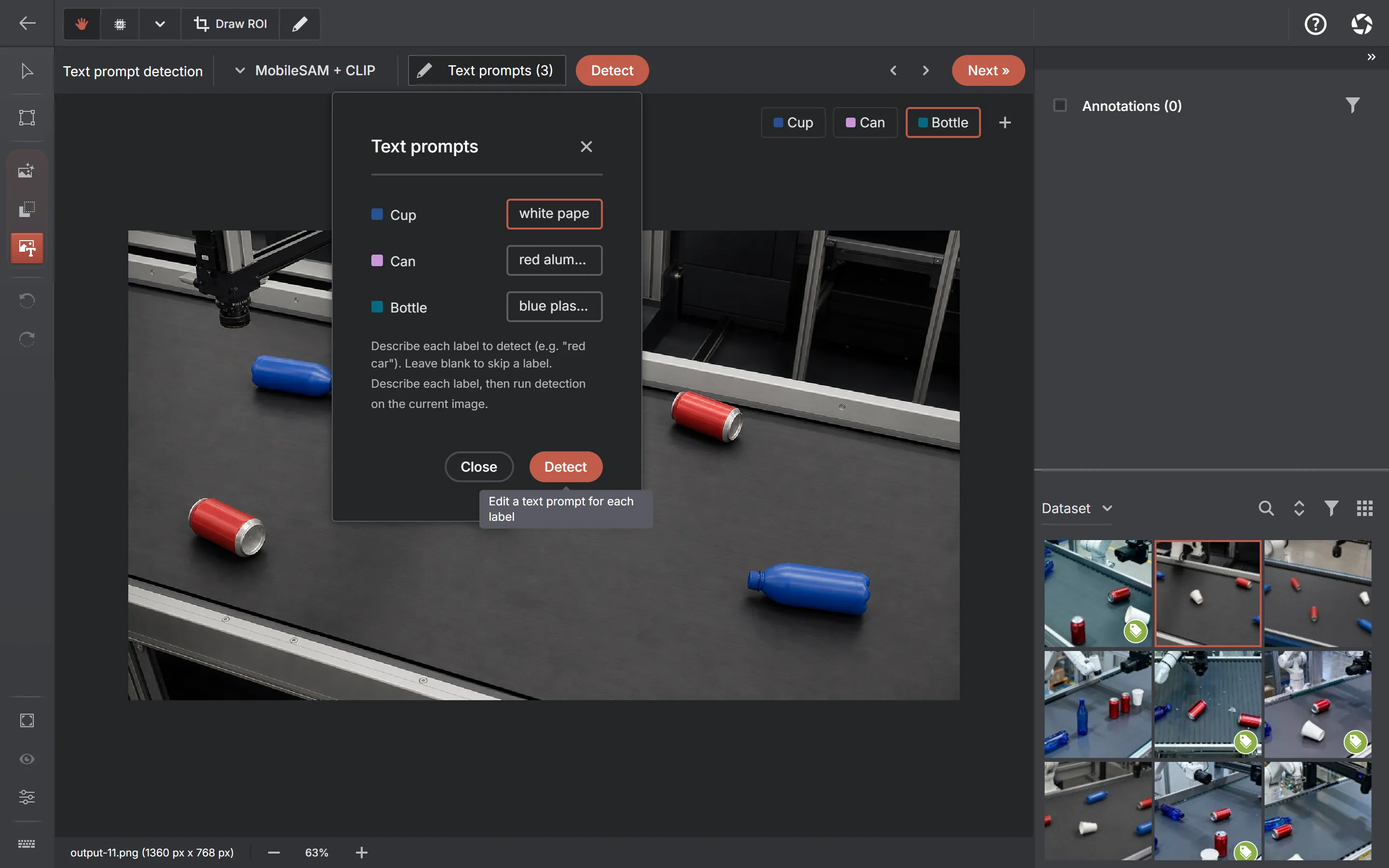
The Text prompt tool is the one most often mistaken for magic. Under the hood it’s a collaboration: whichever interactive engine is active — MobileSAM, SAM 2.1 Tiny, Small or Large, or SAM 3 Tracker where supported — proposes candidate regions, and CLIP or SigLIP 2 encodes both your text prompt and each candidate crop and scores how well they match. The regions come from segmentation; the meaning comes from the text model; the best matches get your label attached, and overlapping guesses are filtered out. The toolbar names the exact pair before it runs.
Sources: MobileSAM (GitHub)Grounding DINO (arXiv)CLIP (arXiv)SigLIP 2 (arXiv)
Grounding DINO reaches a similar-sounding goal by a different road. It’s an open-vocabulary detector: you type a phrase and it predicts boxes for matching objects directly, with no SAM anywhere in the loop. It starts from the same thing the Text prompt tool does, a few words, but it works differently and gives you something different. Grounding DINO always hands you boxes; the hybrid hands you shapes that follow your project: masks or polygons in a segmentation project, boxes in a detection one. Which one you reach for depends on the geometry you need and how the two behave on your images, not on one being the “real” text tool.
CLIP and SigLIP 2 also work entirely without SAM, for the jobs where geometry isn’t the point: zero-shot classification of a whole image, semantic search across a dataset (“a dented can lying on its side” over four thousand frames), and a coarse heatmap of where in an image a phrase matched. No shapes, just scores. Visual Prompt goes the opposite way from text: you hand it an object you’ve already annotated and it hunts for ones that resemble it, carrying that example’s label onto each match it accepts.
One conveyor line, four different questions
Concrete beats abstract, so stay on that sorting line — bottles, cans and cups on the belt — and watch the question you’re asking pick the tool for you.
You’re looking at one bottle and you want its exact outline for a segmentation set. That’s interactive segmentation: click, refine if needed, label, done. Now you’ve carefully annotated that one bottle and you’d like the other containers like it on the same frame without clicking each one. That’s Visual Prompt — your annotation is the example, and it goes and finds the rest. Instead, you can describe what you want — “red aluminum can”, “blue plastic bottle” — and you’d rather type than point. That’s the CLIP/SigLIP 2 + SAM Text prompt tool, turning a description into candidate shapes. And if what you need is plain bounding boxes straight from an open-vocabulary phrase, that’s Grounding DINO.
The two text-driven routes look interchangeable from the outside and aren’t, so it’s worth seeing them next to each other:
CLIP / SigLIP 2 + active SAM
Text picks among regions the selected segmentation engine already found.
- The active MobileSAM, SAM 2.1 or SAM 3 engine proposes candidate regions across the image.
- CLIP or SigLIP 2 encodes your prompt and each region crop.
- Each region is scored against the prompt by similarity.
- The best-matching label is attached; overlaps are filtered.
- You get labelled shapes that follow the project — masks or polygons in segmentation, boxes in detection.
Grounding DINO
Text produces boxes directly.
- The detector reads your phrase as the query.
- It predicts boxes for matching objects directly.
- Each box takes the phrase it matched as its label.
- Overlapping boxes are filtered.
- You get bounding boxes.
One thing barely changes across the four, though the mechanics differ. Interactive segmentation leaves a pending shape you keep, correct or discard — and giving it a label is what confirms it. The prediction-based sources — text-prompt detection, Grounding DINO, find-by-example — arrive as drafts instead, which the Quality tab counts separately from real annotations until you accept them. Those predictions carry one optional shortcut, off unless you switch it on: an “Always accept AI annotations” setting that folds each new prediction straight into the saved scene. Even then it never overwrites work you drew yourself. Zero-shot moved the bulk of the job from drawing to reviewing; how much of that review you keep is your call.
Choosing an interactive engine, without a benchmark rabbit hole
Interactive segmentation isn’t a single model. AnnotateIt offers a handful, and they trade off the usual things — download size, memory, speed, and how tight the masks come out. The goal here isn’t to rank them; it’s to know what you’re choosing between.
- MobileSAM is built in and ready the instant the app opens. It’s the lightweight starting point, and on iPhone and iPad it’s the only interactive engine offered, because heavier ones would blow the mobile memory budget.
- SAM 2.1 Tiny and Small are optional web-and-desktop downloads with CPU fallbacks, including in the packaged Windows and macOS apps.
- SAM 2.1 Large and SAM 3 Tracker need the app’s WebGPU capability. They are offered in Windows, macOS and compatible desktop browsers with a working WebGPU adapter, and are unavailable on mobile.
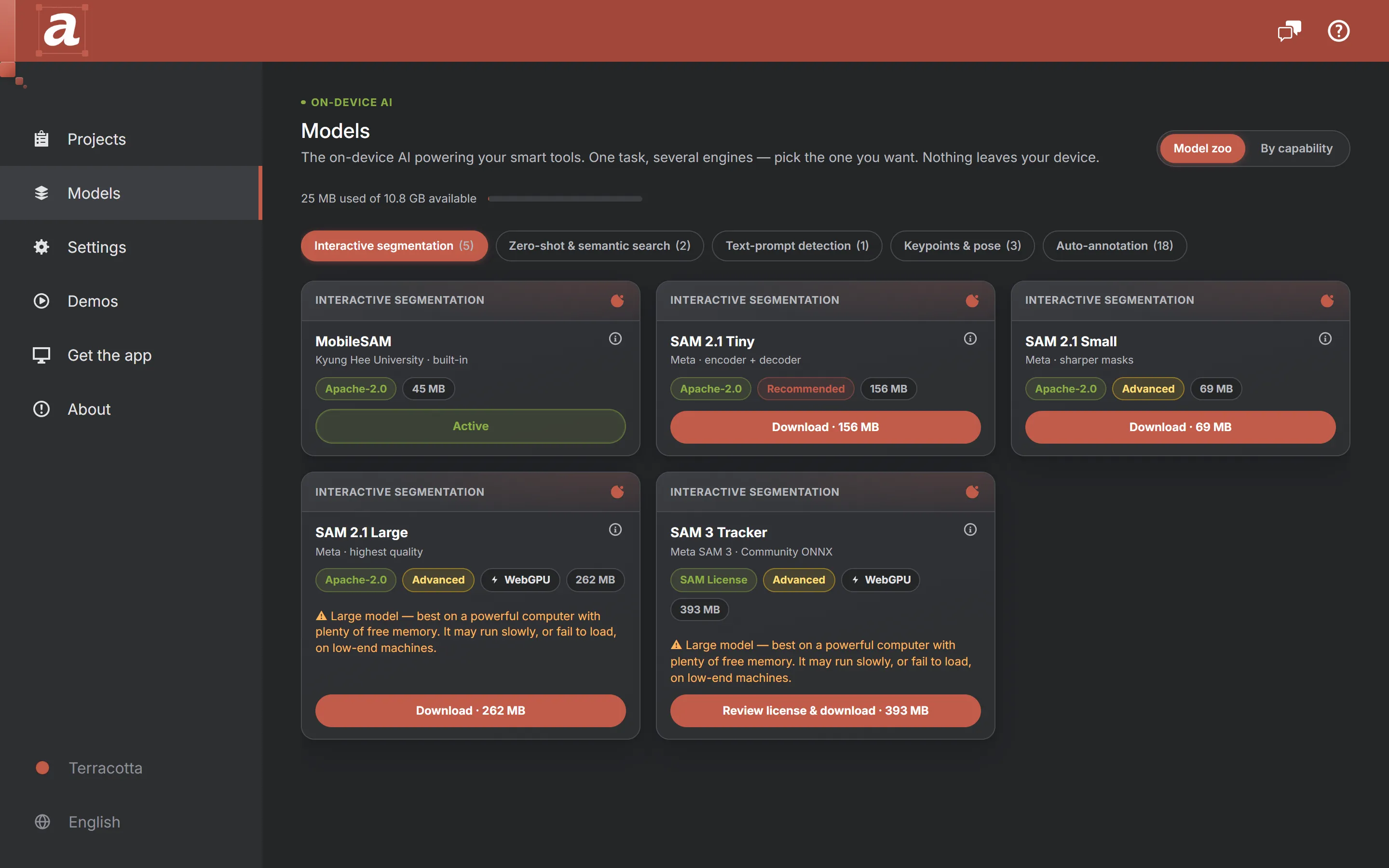
A couple of clarifications, since a glossier version of that list would skip them. These are not “all Meta models.” MobileSAM is a community project built on the Segment Anything approach: a distilled, faster encoder from academic authors, not a Meta release. The built-in engine actually pairs that community encoder with Meta’s own original SAM decoder, which is why the tool is still called Segment Anything even though the card credits Kyung Hee University for the model that makes it fast. SAM 3 Tracker, in AnnotateIt, is a community ONNX conversion of Meta’s model, fetched from a pinned Hugging Face revision and gated behind Meta’s SAM License; it’s wired in as an interactive segmentation engine, not as a full concept detector and not as a video tracker. And Meta’s own SAM 2.1 line includes a “Base+” size that AnnotateIt simply doesn’t carry. None of that changes how you use them. It’s just true, and worth saying plainly.
As for which is “fastest” or “best,” that genuinely depends on your hardware and your images. There’s a separate local benchmark with real numbers on a fully specified machine if you want to go deep, including the surprise that WebGPU transforms the smallest model and does almost nothing for the larger two. The short practical answer: start with the built-in engine, and only spend a download when a specific image convinces you the masks aren’t tight enough.
Sources: Meta — Segment Anything Model 3
The one route that does hand you a label: a curated detector
Everything up to here has kept semantics on your side of the line — the model draws, you name. One family of tools crosses that line, and it is worth knowing exactly how far it goes. AnnotateIt ships a set of ready-to-use detectors and segmenters, badged on the Models page as Auto-annotation models, that were trained on a fixed list of classes and so do hand you a class along with the shape.
There are 8 of them, presented as branded families: D-FINE, RT-DETR, RT-DETRv2, DEIM and RF-DETR for object detection, plus EdgeCrafter ECDet for detection, with EdgeCrafter ECSeg and RF-DETR Seg for instance segmentation — 24 released checkpoints in all, each family led by a compact, recommended variant with heavier, higher-capacity options behind most of them. Every one is Apache-2.0, every one predicts the eighty COCO classes, and every one runs locally on your CPU with nothing uploaded. You download one from the Models page, match its COCO classes to your project’s labels, test it on one of your own images, and save it as the project’s active model — and setup checks the downloaded file against its published specification on your device first, so a wrong or corrupt file is caught there rather than quietly mislabelling later.
This is the closest the product comes to “the model labelled it for you,” and it still is not the whole job. The class it proposes is a COCO class, not your schema’s: a curated detector can offer car, but it cannot know that this project files a particular car under Mercedes, or that the crushed one at the edge of the belt is out of scope. Mapping its eighty words onto your labels is a decision you make once, at setup, and the edge cases stay yours exactly as they were with the zero-shot tools. It also finds only what COCO contains — a class COCO never learned is one no amount of running the detector will surface.
Because the label comes from the model this time, the review step matters more, not less, and AnnotateIt treats these predictions accordingly. Run a curated model on the image in front of you, or across a whole dataset, a selection, a filter or your semantic-search results from the dataset toolbar’s Auto-annotate action, and every result arrives as a pending draft rather than a finished annotation. Those drafts stay out of your exports, your frozen dataset versions and your statistics until you accept them, and a persistent “Review N” button sits in the dataset toolbar until the queue is empty. Accepting promotes the drafts to real annotations; rejecting removes exactly those draft rows and never touches anything you drew by hand.
A thirty-second decision guide
When you’re actually in the tool and just want the answer:
- I know which object I want and need an exact outline
- Interactive segmentation
- I have one example and want visually similar objects
- Visual Prompt
- I want candidate shapes from a label description
- CLIP/SigLIP 2 + SAM
- I want boxes straight from an open-vocabulary prompt
- Grounding DINO
- My objects are common COCO categories and I want a trained model to propose their boxes or masks
- A curated Auto-annotation model
- I want to classify or search whole images
- CLIP/SigLIP 2, no SAM
The mask is the easy part
Back to that conveyor line. I still find that one-click mask a little uncanny: one click for a shape that used to be a minute of careful tracing, and it works on objects the model was never specifically taught. That’s the zero-shot win, and it isn’t nothing; across a large dataset it turns a discouraging amount of tracing into a much smaller review job.
But it stops one honest step short of “the model labelled everything for you.” Interactive segmentation doesn’t replace the annotator’s judgement. It removes the most repetitive, least interesting part of the job — dragging a cursor around an outline — and hands the rest back: which class, which policy, which edge cases, which objects don’t belong at all. That’s a less dramatic claim than full autonomy, and it’s the one that produces a dataset you can actually trust.
If you’d rather feel the difference than read about it, the one-click tools are free to try in AnnotateIt, and everything above runs on your own device. When you’re deciding which pipeline fits a task, the split is the same one this whole piece has been about: is your question “which object is this?”, “what does it look like?”, or “what do I call it?” Match the tool to the question, and the rest gets a lot quieter.
Frequently asked questions
- Is interactive segmentation zero-shot?
- Yes. You don’t train or fine-tune anything on your class before it can outline your object — the model was pre-trained and generalizes to new objects and domains. “Zero-shot” describes exactly that: no per-class training. It is not a promise of perfect masks or hands-off labelling.
- Does SAM know the object’s class?
- No. AnnotateIt’s interactive tool is prompted with positive and negative clicks and returns geometry — a mask or a box — with no semantic class of its own. It can attach the active project label you selected before clicking, but that label comes from you: the outline is the model’s, the word is yours. SAM has no idea whether your schema calls the class bottle, container or glass_bottle.
- Can SAM find every object matching a text prompt?
- AnnotateIt’s interactive segmentation is prompted with clicks, not text. Text-driven discovery comes from other pipelines: SAM region proposals scored by CLIP or SigLIP 2, or Grounding DINO predicting boxes directly. Both propose candidates for review, and neither guarantees it caught every instance. (Meta’s full SAM 3 does accept concept prompts, including short phrases — but that is upstream of the interactive engine AnnotateIt ships.)
- What is the difference between SAM and Grounding DINO?
- In AnnotateIt, interactive SAM segments an object you point at and returns a mask; it needs a spatial prompt and attaches no class. Grounding DINO reads a text phrase and predicts labelled boxes directly, with no SAM involved. One turns a location into geometry; the other turns words into boxes.
- What do CLIP and SigLIP 2 do in AnnotateIt?
- They are image-text models that score how well a picture matches a description. On their own they power zero-shot classification and semantic search — no shapes. Paired with the active MobileSAM, SAM 2.1 or SAM 3 engine, they turn a text prompt into labelled shapes by scoring its proposed regions. SigLIP 2 is the heavier, multilingual option; CLIP is built in.
- Which interactive segmentation engine should I choose?
- Start with built-in MobileSAM. On web and desktop, try SAM 2.1 Tiny and then Small only when a real image shows the masks are not tight enough. Large and SAM 3 Tracker are offered only by the web app in a compatible browser with WebGPU. Choices are made on Models, and every engine the current platform offers runs locally.
See also
- MobileSAM vs SAM 2.1 vs SAM 3: practical performance
- Segment Anything, SAM 2.1 and SAM 3
- Text-prompt detection with Grounding DINO
- The Models page
- SAM 2.1 local benchmark
- Semantic search and pre-labelling
- Local pre-labeling with curated detectors
- Labels, text prompts and attributes
- Instance segmentation and masks
- SAM 2 annotation tool
- How AI is changing data annotation
- What is image annotation?