Getting media in, and preparing it
A dataset accepts image and video files, existing dataset archives, photos and silent clips recorded with Camera, and stills extracted from videos already in the project. Once media is in, the built-in editor and media grid prepare, filter, sort and search it on-device.
Four ways in
| Route | What it takes |
|---|---|
| Upload | Supported still-image files and CFR and VFR videos, or whole folders |
| Import dataset | A .zip in COCO, YOLO, Pascal VOC, Datumaro or plain media form — the format is detected |
| Camera | Photos and silent video clips from the selected camera, reviewed before anything is added |
| Extract frames | Stills taken from a video already in the dataset |
Supported image and video files
Media file types are separate from dataset annotation formats such as COCO or YOLO. Upload and archive import recognise the files below, but a recognised extension is not a guarantee that every codec, compression method or colour layout inside it can be decoded on your device.
| Media | Extensions | What you can annotate |
|---|---|---|
| JPEG, PNG, BMP and WebP | .jpg, .jpeg, .jfif, .png, .bmp, .webp | A still image |
| TIFF | .tif, .tiff | The first page of a supported TIFF, as an 8-bit preview |
| HEIC / HEIF | .heic, .heif | The first still image, decoded locally |
| GIF | .gif | The first frame only, not the animation |
| AVIF | .avif | The first frame only; requires a compatible browser or WebView decoder |
| Video | .mp4, .mov, .m4v, .webm | CFR or VFR video with readable timing and a codec the running platform can decode |
| Desktop-native video | .avi, .mkv | Frame annotation/extraction through the native desktop decoder; browser playback may be unavailable |
TIFF pages, HEIF image collections and GIF/AVIF animations do not become multiple dataset items. Only the selected first page, still or frame is annotated. Display and annotation previews are 8-bit; an untouched 16-bit or multi-page original remains intact for download and export. This is not a high-bit-depth or multi-page annotation workflow.
TIFF decoding covers unsigned 8/16-bit grayscale, RGB and RGBA plus 8-bit palette images, with uncompressed (Raw), LZW, PackBits or Deflate data. BigTIFF, floating-point samples, planar storage, CMYK and JPEG/fax compression are not supported; decoding work is capped at 256 MiB. HEIC/HEIF support covers the first still in supported codec and layout variants, not every codec or image sequence that a HEIF container can hold.
Video codecs and frame timing
The container extension does not identify its codec: two MP4 or MOV files can need different decoders. Browser and WebView codec availability varies; desktop native decoding can make frame annotation available even when Play is not. The app reports that distinction instead of treating a playable extension as a guarantee.
Supported videos may use constant (CFR) or variable (VFR) frame rate. The frame count, frame rate and presentation timestamps are read from the file, not filled in with an assumed 30 FPS. Variable-frame-rate (VFR) video is supported with exact presentation-frame indices and average FPS displayed. Imported bytes and timing remain unchanged. External tools receive average FPS and exact frame indices; tracks interpolate by frame index. Timing inspection is bounded to 45 seconds and at most 1,000,000 frames, so a file with unreadable or excessive timing data is rejected with an explanation.
Older stored videos without verified frame timing are blocked from opening, playback and extraction to protect existing labels. Their media ids and annotations are not rewritten. Import the original as a new video to establish timing, keep the old annotated item, and review any annotation transfer separately. An old annotated archive does not bypass this guard; a new sidecar with verified timing must match the actual frame rate and frame count.
Originals are not automatically converted on export
A derived PNG is only the working still used for display, annotation and AI. Untouched original bytes are preserved in downloads, dataset exports and project backups without replacing stored media. Archive entry names can follow dataset-format or collision rules; output extensions and media MIME types match the actual encoding. Only an explicit image edit/save replaces the original; the output-format rules are described in the editor section below.
Camera, screen and video-file capture
The capture page accepts a camera, supported screen sharing, a playable local video file or, in the desktop app, a network camera as its source. Collect stills from any available source; cameras, screens and network cameras also offer silent video recording when supported. Watched folders are not implemented.Pick a label above the viewfinder if you want every capture tagged, then take a photo or start and stop a video recording. Captures collect beside the viewfinder — phones show them on their own screen — where you can preview and remove the ones you do not want.
Nothing reaches the dataset until you accept the batch. "Discard all" throws the staged photos and clips away instead. Video is recorded without microphone audio; the app chooses a container and codec supported by the running browser or WebView. Capture losslessly remuxes its own recorded packets to CFR before staging, without re-encoding pixels; accepted clips pass the same timing checks as other uploads.
For a session where you are watching something happen rather than composing shots, capture can also run itself. Choose a mode in the capture panel; each automatic mode applies its own rule and rate controls:
- At a steady rate — one frame every N seconds, for the whole session.
- On motion — when the picture changes enough, with a minimum gap so one movement does not yield twenty near-identical frames.
- On low confidence — when the active model is unsure about what it sees, which is the frame actually worth labelling.
- On visual diversity — Smart capture can select frames unlike those already collected in this session. This measures novelty, not guaranteed model difficulty; the signal is unavailable on mobile.
Extracting frames from a video
The video’s menu in the media grid offers Frames. Frames are taken evenly across the whole clip: one per second, a fixed number spread evenly, or all of them. Choose PNG for lossless output or JPEG with a quality slider, and send the result to a new dataset — preselected, named after the video — or the current one.
- Annotations you already drew on the video are copied onto the extracted images by default, interpolated track positions included. That copy happens before the video is removed, if you asked for the video to be removed.
- The run shows a progress bar and can be cancelled; frames already saved stay in the dataset.
- Each frame is named after the video with its frame number appended, and behaves like any other image from then on.
- Decoding happens on your device. Nothing is sent anywhere.
The built-in image editor
Opened from a dataset item’s menu, the editor is the same layout as the annotator with a different toolbar. It exists so that "this photo is rotated" or "these are 8000 pixels wide" does not mean exporting to another application and importing the result back.
- Crop, with a free or fixed aspect ratio.
- Resize, with an optional aspect-ratio lock.
- Rotate left and right, flip horizontally and vertically.
- Brightness, contrast and saturation, a grayscale conversion, auto-levels, auto white balance and sharpen.
- Redact — blur, pixelate or black out a region, for plates, faces and bystanders.
- Undo, and a reset that takes the image back to how it arrived.
- Step through the dataset without leaving the editor.
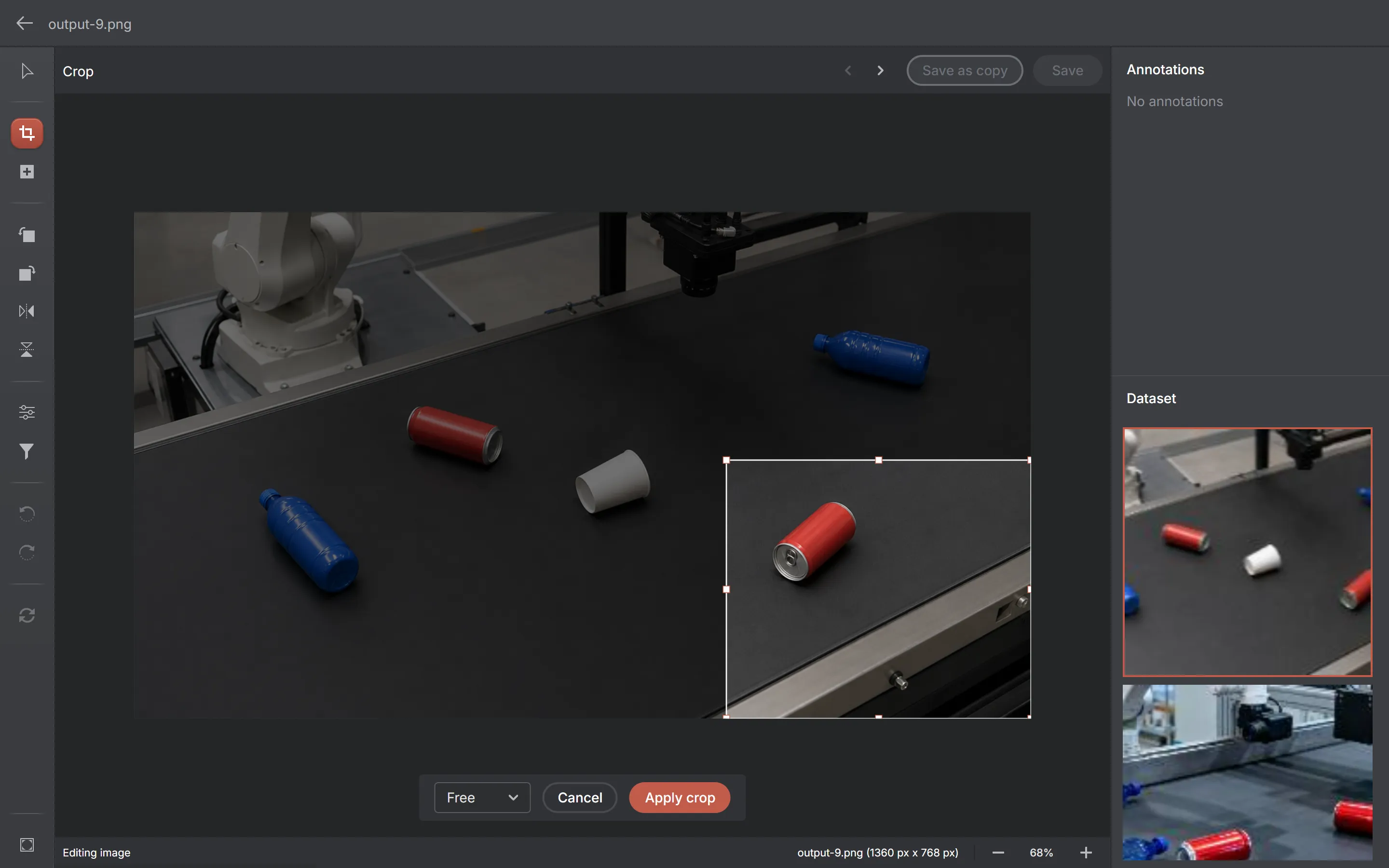
Saving replaces the original image. If the edit changed the geometry — a crop, a resize, a rotation — the annotations on that image no longer describe it, so they are removed, and the editor says so before you save rather than after. "Save as a copy" leaves the original and its annotations untouched.
An explicit edit/save of TIFF, HEIC/HEIF, AVIF, GIF or BMP writes PNG, with a .png filename, image/png MIME type and matching export references. It saves the edited 8-bit still, not every page, animation frame or the original high-bit-depth pixels. JPEG, PNG and WebP keep their format only when the device encoder actually returns it; otherwise the filename and MIME type follow the format really written. Simply opening, annotating, downloading or exporting an image does not perform this replacement.
Finding things in the grid
- Sort by name, upload date, size or when the item was last annotated.
- Filter by file name, media type, size, width, height, upload date or annotation state — and save a filter you use often.
- Switch between large, medium and small thumbnails or a details list.
- Select several items to act on them together.
- Search semantically for what is in the picture — see "Semantic search and batch pre-labelling".
When an image is too large to draw
Browser canvases and decoders have limits on dimensions, decoded pixels and working memory; compressed file size alone does not tell you whether an image will fit. A TIFF, HEIC/HEIF, GIF or AVIF that cannot be decoded safely into its working still is rejected during import. Resize or convert a copy outside AnnotateIt before importing it; an item that was never imported cannot be fixed in the built-in editor.
For an image that is already stored but exceeds the current renderer’s limits, the grid and annotator expose the problem:
- The media grid shows a badge on the item, so the problem is visible before you open it.
- Opening it shows a panel in place of the canvas that states the size, the limit, and what to do about it, instead of a blank screen.
- If the editor can decode it, resize a copy below the limit; otherwise prepare a smaller copy in another tool and import that.
- Stored annotation coordinates are never silently rewritten to make an image fit — that would corrupt a dataset to save a redraw.
On iPhone and iPad there are additional input ceilings — 32 MiB per image, 128 MiB or ten minutes per video, 128 MiB per imported archive — because the mobile WebView is killed by the operating system rather than allowed to run out of memory. Web and desktop also have finite file, duration, decoding and archive limits. See "Platform differences".