Annotating video with tracks
A track is one object followed across a video: you set its shape on keyframes, then boxes and compatible polygons interpolate between them. Raster masks stay exact by holding the previous mask until the next keyframe, so every changed mask needs its own keyframe. Object Detection uses identity-bearing box tracks, while Instance Segmentation uses object-mask tracks. Keypoint Detection stays frame-by-frame, and the three Classification variants use frame ranges instead. Nothing is uploaded: all track math stays on your machine.
Annotation or track
Shapes drawn on a video are saved in one of two ways, and the choice decides whether a shape belongs to a frame or to an object. The editor asks the question as soon as you pick an annotation tool on a video, and the answer holds for the rest of it.
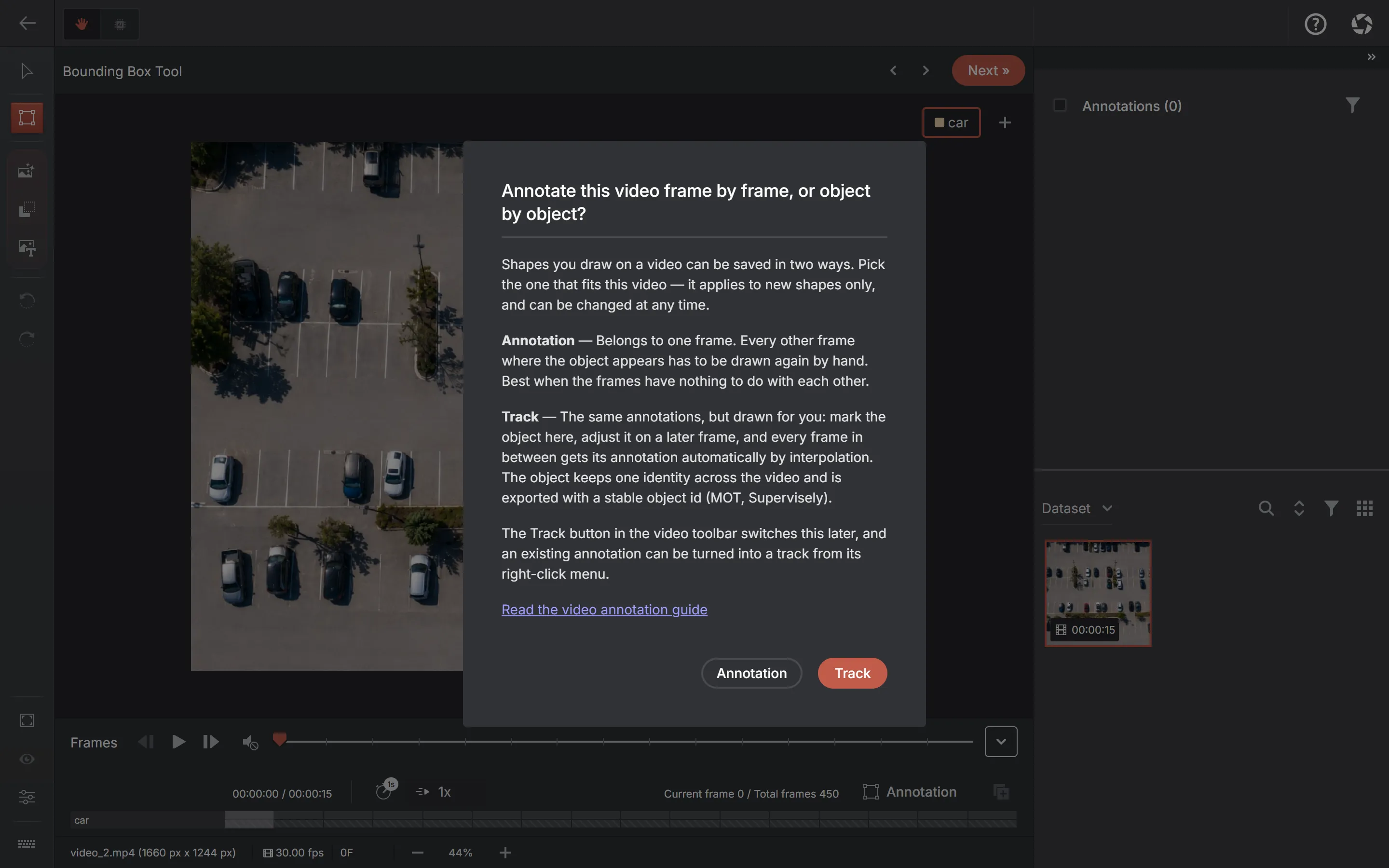
- An annotation belongs to one frame. Two annotations on two frames are unrelated even when they sit on the same car — nothing records that it is the same car. Right for frames used as a pile of independent images.
- A track is one object across the video, defined by keyframes and interpolated in between. It keeps a single identity for the whole clip, which is what multi-object-tracking datasets are made of.
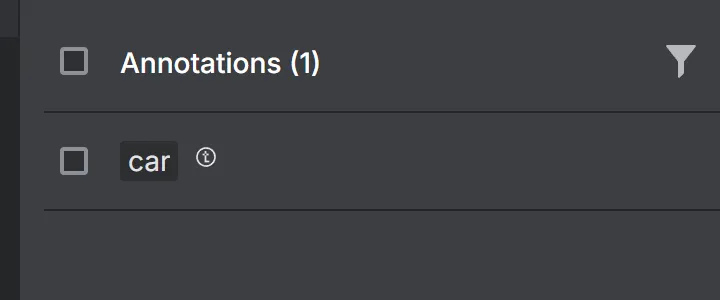
A label cannot do this job. Three cars all labelled "car" on one frame are indistinguishable by label alone, so identity has to live somewhere else — that is what a track is, and it is why the timeline names tracks car #1, car #2, car #3.
Creating a track
Track mode changes what a new shape becomes, so it applies to shapes drawn after it is on. The question is asked when you first pick an annotation tool on a video; afterwards the button in the video toolbar shows the current mode — Annotation or Track — and switches it.
- Go to the first frame where the object is visible and draw it. That frame becomes the first keyframe. Before it the track does not exist; after it the shape holds — a parked car annotated once is marked on every remaining frame.
- Move to a later frame. The shape is already there with a dashed outline, which means the shape on this frame was interpolated rather than set by you.
- Drag or resize it onto the object. The frame becomes a keyframe and everything between the two keyframes is interpolated. Track edits save themselves when you leave the frame — no submit dialog, because a keyframe is additive and there is nothing to discard.
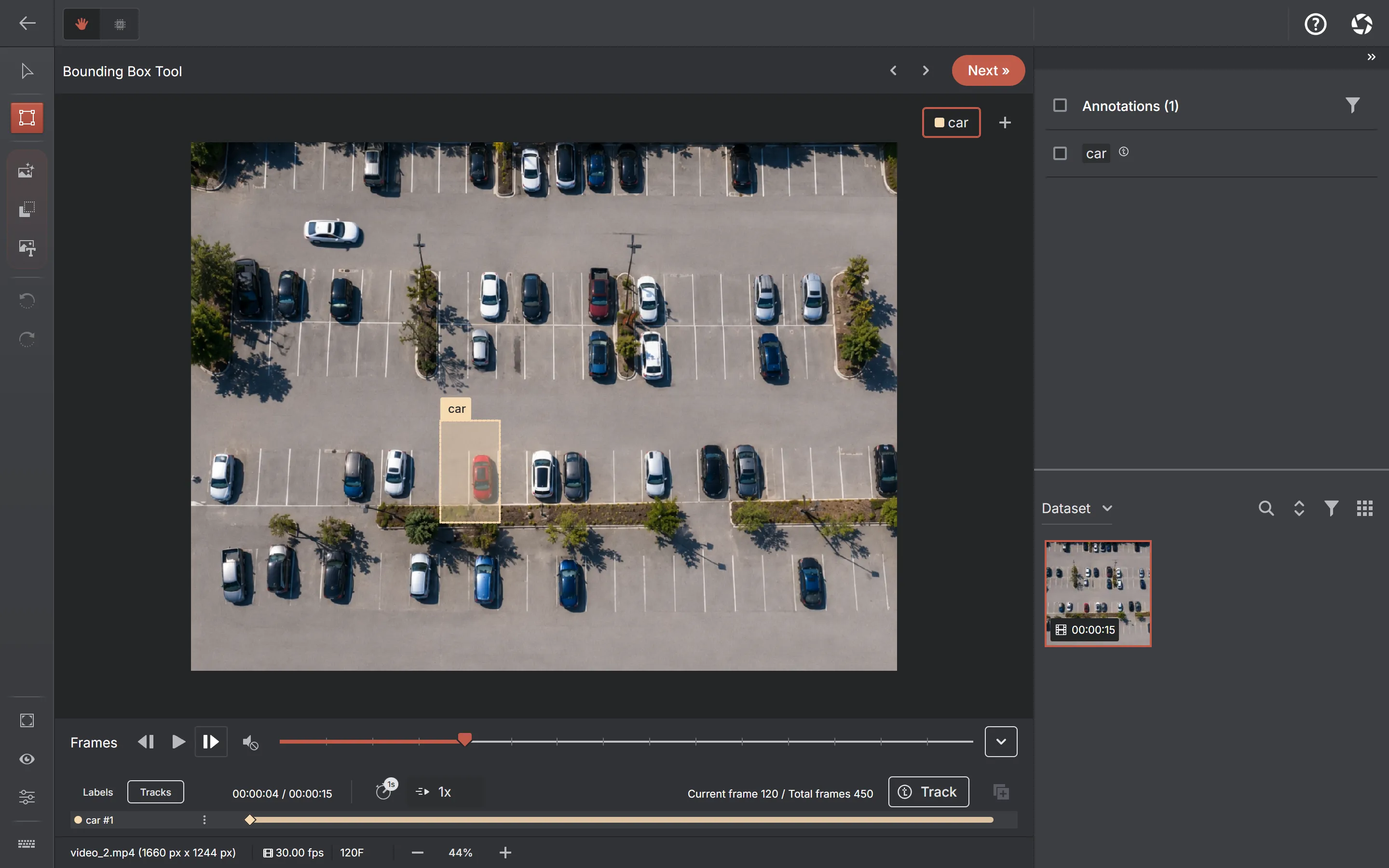
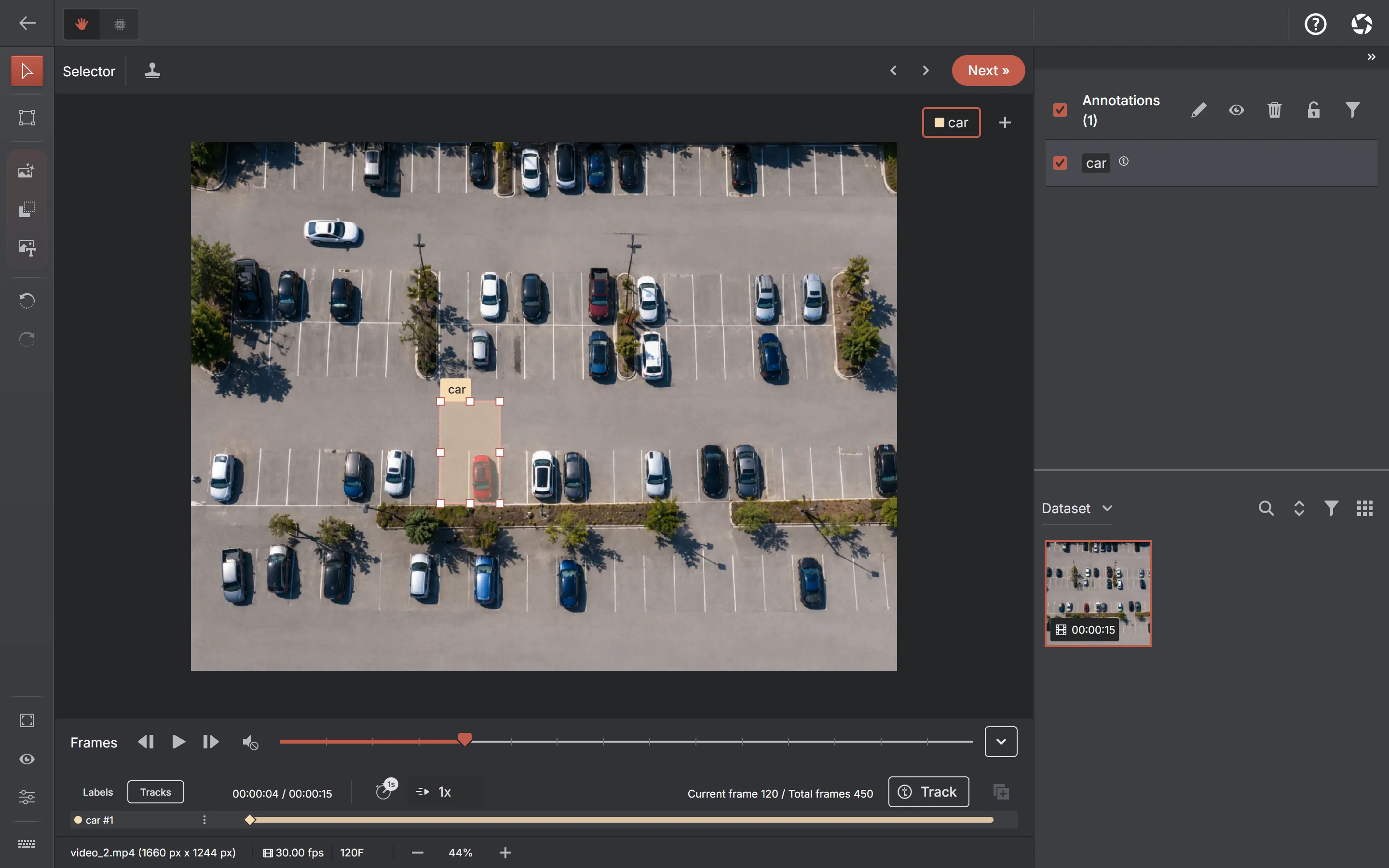
A straight, steady movement needs only its two ends. Add a keyframe wherever the object changes direction or speed; everything else is filled in.
An annotation drawn earlier is not wasted work: right-click it, or use the menu on its row in the annotation list, and choose "Convert to track". If the same annotation was propagated across several frames, the whole chain becomes one track with a keyframe per frame.
Which shapes can be tracked
| Shape | Between keyframes |
|---|---|
| Box, rotated box, circle | Linear interpolation of position, size and radius; rotation takes the shortest arc. |
| Polygon (including One-click mask, Click to refine, Box to mask) | Point-by-point interpolation when consecutive keyframes have the same number of vertices — the case when you adjust the previous contour. When the counts differ, which is what a freshly generated mask gives, the previous contour is held until the next keyframe. |
| Keypoints / pose | Not supported yet — a skeleton needs semantics of its own. |
Holding a mismatched contour is deliberate. Two independently generated contours have no correspondence between their points, so interpolating them by index would produce a shape that is simply wrong. For meaningful interpolation, corresponding contour vertices need compatible ordering and geometry. AnnotateIt holds the prior shape when the vertex counts differ.
Ending a track when the object leaves
A track does not end by itself: after the last keyframe its shape holds to the end of the video, because your keyframes are the only record of where the object is. This matters at export — interpolated frames are baked into real per-frame labels, so a track left hanging reports the object on every remaining frame, sitting on an empty space.
- Go to the first frame where the object is gone, select the shape and press X.
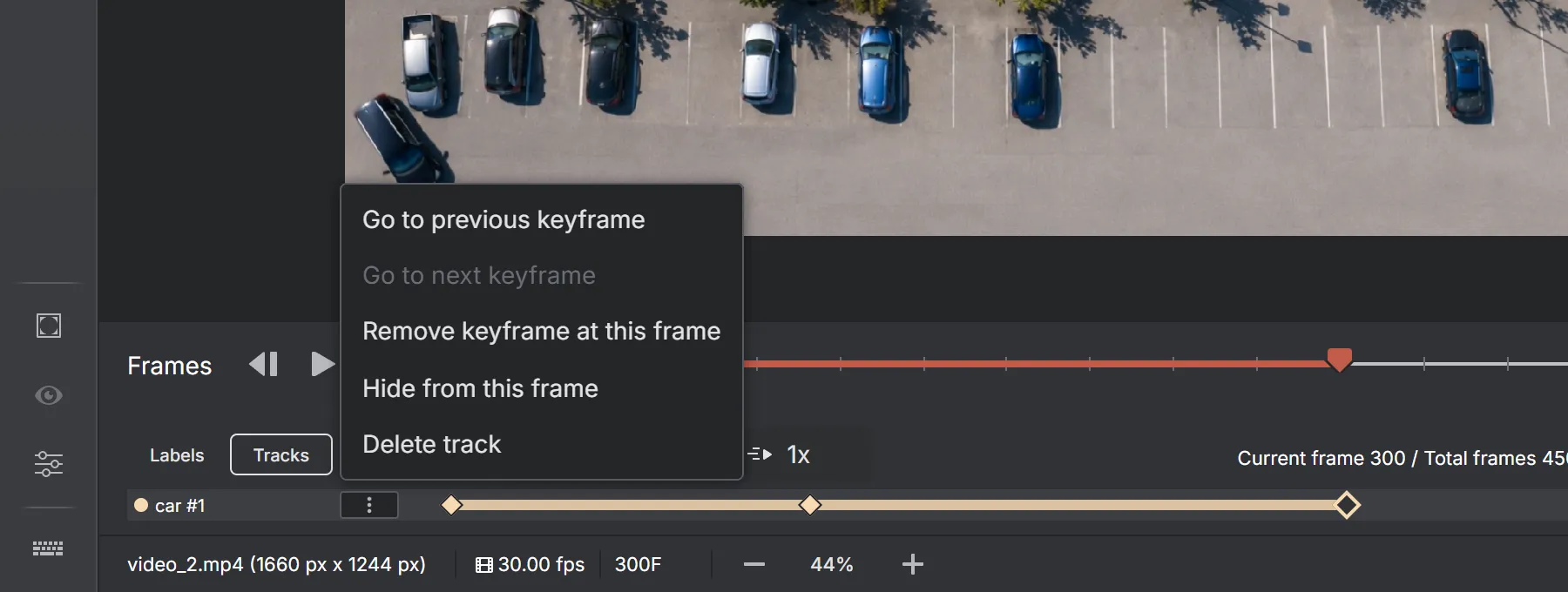
- Or use "Hide from this frame" in the track row menu on the timeline.
- Or delete the shape: a dialog asks whether to delete the whole track or only hide it from this frame.
All three write an outside keyframe: the track bar stops there and the frame gets a hollow diamond. Interpolation still runs up to it, so the object keeps moving to its last position before disappearing. If it comes back, add a keyframe on the frame where it reappears (U, or "Add keyframe at this frame") and place the shape — the track continues with the same identity, and the gap stays empty.
The tracks timeline
Once the video has a track, the timeline gains a Labels / Tracks switch and opens on Tracks. Each track is a row named after its label with a number that is its identity, and a bar covering the frames where it is visible.

- Selecting anywhere on a row jumps to that frame and selects the track.
- Selecting a diamond jumps exactly to that keyframe, whatever the current zoom of the timeline.
- Gaps in the bar are outside segments — frames where the object is not in the video.
| Key | Action |
|---|---|
| J / L | Previous / next keyframe of the selected track |
| U | Add or remove a keyframe at the current frame |
| X | End visibility at the current frame (an outside keyframe) |
| K, ← / → | Play or pause, and step one frame — the ordinary video keys |
X and U act on every selected track, so two objects that leave together can be closed in one press. A track's last keyframe is never removed by U — deleting the object is what the delete dialog is for.
Editing a track
- Changing the label of a track annotation changes it for the whole track: one object, one label set. The same is true of attributes — they describe the object, not the frame.
- Moving or resizing a shape on any frame writes a keyframe there. Moving it back does not delete that keyframe; use U, or the row menu, to remove one.
- Deleting a track annotation always asks first, because the shape you see spans many frames: delete the whole track, or only hide it from this frame.
- Undo works within a frame as usual, but track operations — delete track, hide from this frame — are not undone by it. They ask before they happen instead.
- Propagate ("copy annotations to the next frame") skips track-owned shapes: a track already continues by itself, so copying it would produce a duplicate.
What export produces
- MOT — gt/gt.txt with one row per frame per object and a stable id per track, plus seqinfo.ini and the video. Offered for detection projects with video; only boxes can be expressed in it.
- MOTS — the same per-object-per-frame idea for instance-segmentation video, written as instances_txt/<id>.txt (what mots_tools loads): each object is a full-frame run-length-encoded mask, and the track id is folded into the object id (class_id × 1000 + instance_id). Offered for instance-segmentation projects with video.
- Supervisely video — keeps object identity natively: one object with a figure on each frame.
- Project archive — stores keyframes losslessly, so exporting and importing a project keeps its tracks rather than a flattened copy.
- Everything else — receives the baked result: each interpolated frame becomes an ordinary annotation, exactly as if it had been drawn.
Dataset versions freeze tracks too: a version records each track with its keyframes, and restoring a version restores them as tracks, not as flattened per-frame boxes.
A worked example: a small MOT dataset
- Create a detection project with one label per class you want tracked, and import the video.
- Open the video, draw the first object on the frame it appears on, and answer Track.
- Step forward until the object has visibly moved, drag the shape onto it, and repeat. Two or three keyframes cover most straight movement.
- On the frame where the object leaves the scene, select it and press X.
- Repeat for the other objects. The Tracks timeline shows one row each, so it is easy to see which ones still run to the end of the clip and have not been closed.
- Export to MOT. Check gt/gt.txt: one line per frame per object, with the same id on every line belonging to the same track.
Common questions
I drew a shape and it did not become a track
Track mode applies to shapes drawn while it is on. Check the mode button in the video toolbar — it reads Annotation or Track — and use "Convert to track" on the shape you already have.
The box is still there after the object left
That is the hold rule: after the last keyframe the shape stays to the end of the video. End the track with X on the first frame where the object is gone.
The polygon jumps instead of moving smoothly
Its keyframes have different vertex counts, so the contour is held rather than interpolated. Build the next keyframe by adjusting the existing contour (drag its points) instead of generating a new mask, and the interpolation becomes point-by-point.
Can a model follow the object for me?
Not yet. Interpolation is arithmetic between the keyframes you set — no model is involved, and nothing is sent anywhere. The smart tools help you draw each keyframe faster, but the identity across frames is yours to define.
What tracks are not
Tracks are unrelated to the label ranges used for video classification, which mark whole frames over a span of time and carry neither shape nor identity. They are not available in keypoint projects.