Versions, quality, splits and history
Each dataset has four tabs beyond its media: Quality scans it for the problems that ruin a training run, Splits assigns images to train, validation and test deterministically, Versions freezes the whole state as an immutable snapshot you can diff and restore, and History is an append-only record of what happened to it. None of this needs a server, and all of these tools are free.
These are the features people assume require a hosted platform. They do not: they run against the local database on your own machine, on the same media that never left it.
Quality
The Quality tab absorbed the old Statistics tab, so it holds both the plain counts — images, videos, annotated media, objects per label — and, once you run a scan, a full report of what is wrong with the dataset. A scan is explicit rather than continuous: it produces a report of a specific dataset state, and the tab tells you when the dataset has changed since and the report is stale.
| Check | What it finds |
|---|---|
| Media annotations | Images with no ground-truth annotations, and images whose annotations are still an unreviewed AI draft — counted separately, never both |
| Shape validity | NaN or infinite coordinates, non-positive sizes, shapes outside the image, extreme box sizes, degenerate or self-intersecting polygons, inconsistent skeletons |
| Annotation labels | Annotations with no label, with a label the project no longer has, or with the same label attached twice |
| Duplicates | Byte-identical media, grouped by the SHA-256 hash already computed at upload — the bytes are never re-read |
| Class balance | Objects per class, plus imbalance and zero-count warnings that only fire on a real sample rather than on a five-image dataset |
| Object size | The size distribution per label, normalised by each image’s own area, so suspiciously tiny or huge objects stand out across mixed resolutions |
| Dimensions | Image dimension distribution and aspect-ratio outliers, using Tukey’s fences over log ratios |
| Media integrity | Missing blobs, and — if you tick the optional deeper pass — media that will not decode |
| Video coverage | Videos with no annotated frames, annotations pointing at frames outside the video, duplicate ids inside one frame |
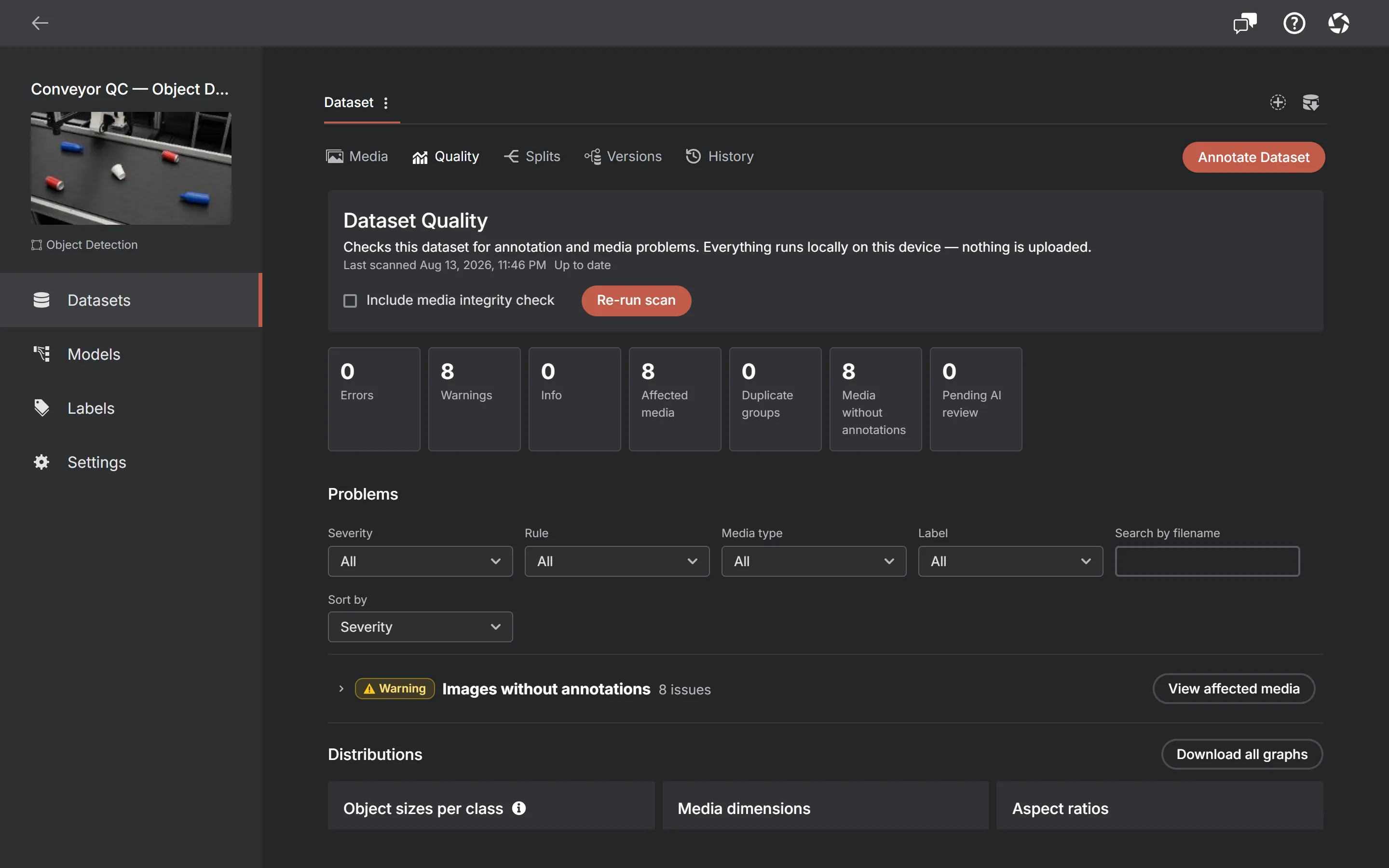
A quick scan never reads media bytes: it works from metadata and the hashes already on record, so it stays fast on a large dataset. Reading the pixels is the opt-in "media integrity" pass, and the report says which kind it was. Nothing is ever repaired automatically — findings are reported and the data is left alone.
Train / validation / test splits
The Splits tab assigns every image in the dataset to train, validation or test. You choose the three percentages (they must add to exactly 100), a seed, and whether to stratify by labels; the planner is deterministic, so the same seed over the same images reproduces the same split exactly.
- Set the ratios, the seed and the stratification switch, then generate a preview. Nothing is written yet.
- Look at what it proposes — including whether the dataset is even large enough to fill three subsets at those ratios.
- Apply it, or discard the preview. Applying is guarded against the dataset having changed underneath you in the meantime.
- Move individual images between subsets by hand and lock them; "Rebalance unlocked" then reshuffles only the rest.
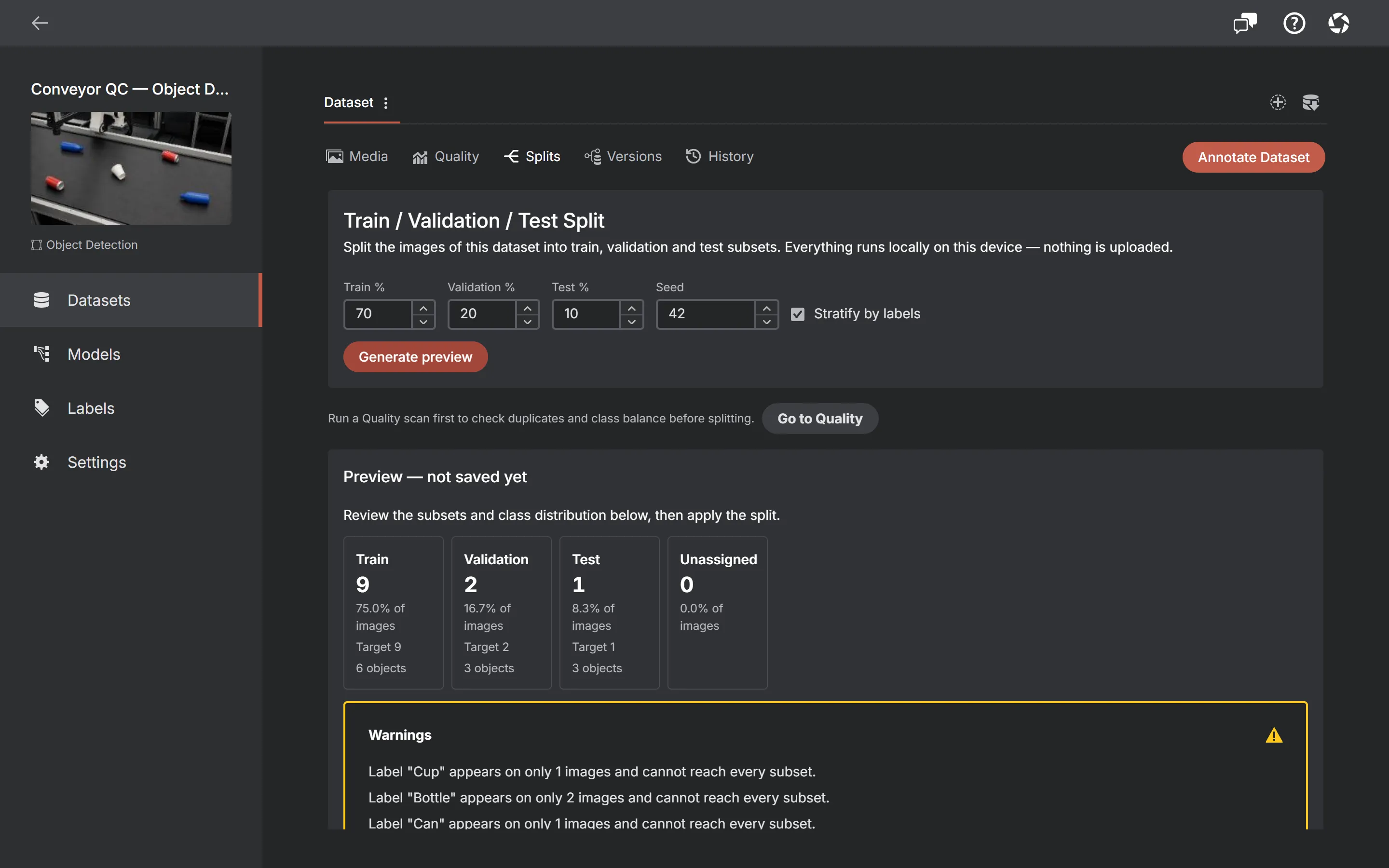
Splits are image-only: videos are never placed in a subset, and the tab says how many are excluded. Restoring a dataset version restores its frozen split; resetting clears it.
A split is dataset state, so it travels with an export in two different ways — the format’s own native layout in split mode, and an annotateit-splits.json manifest whenever you export the whole dataset. "Dataset formats and the exact round trip" covers exactly what each format lays out.
Evaluate the active model on the test split
The evaluation panel sits in Splits. Run a ready active model against reviewed test images and inspect task-specific and per-label metrics. Images awaiting AI review and unannotated images are excluded, not treated as verified negatives. Results retain a manifest of the model, test data and label schema; compare only compatible scopes and settings. Text-prompt and visual-prompt engines are currently disabled for reproducible benchmarks. Evaluation does not write annotations.
Dataset versions
A version is an immutable snapshot of everything that makes the dataset what it is: its media, image and video-frame annotations, native video tracks, the label schema with colours and hierarchy, attribute definitions and values, text prompts, the project task, the keypoint template and the split. Once saved it never changes, so you can keep working and still get the earlier state back.
- Compare two versions and see what changed between them, rather than guessing from counts.
- Download a version as a dataset in any format the frozen project type supports — except MOTS, whose per-label class mapping cannot be configured for a frozen snapshot. The archive is built only from the frozen rows, never from the live project.
- Restore a version — the dataset returns to that state, split included.
- A version carries a content hash covering all of the above, and a missing blob or an inconsistent reference blocks the download rather than shipping a partial archive.
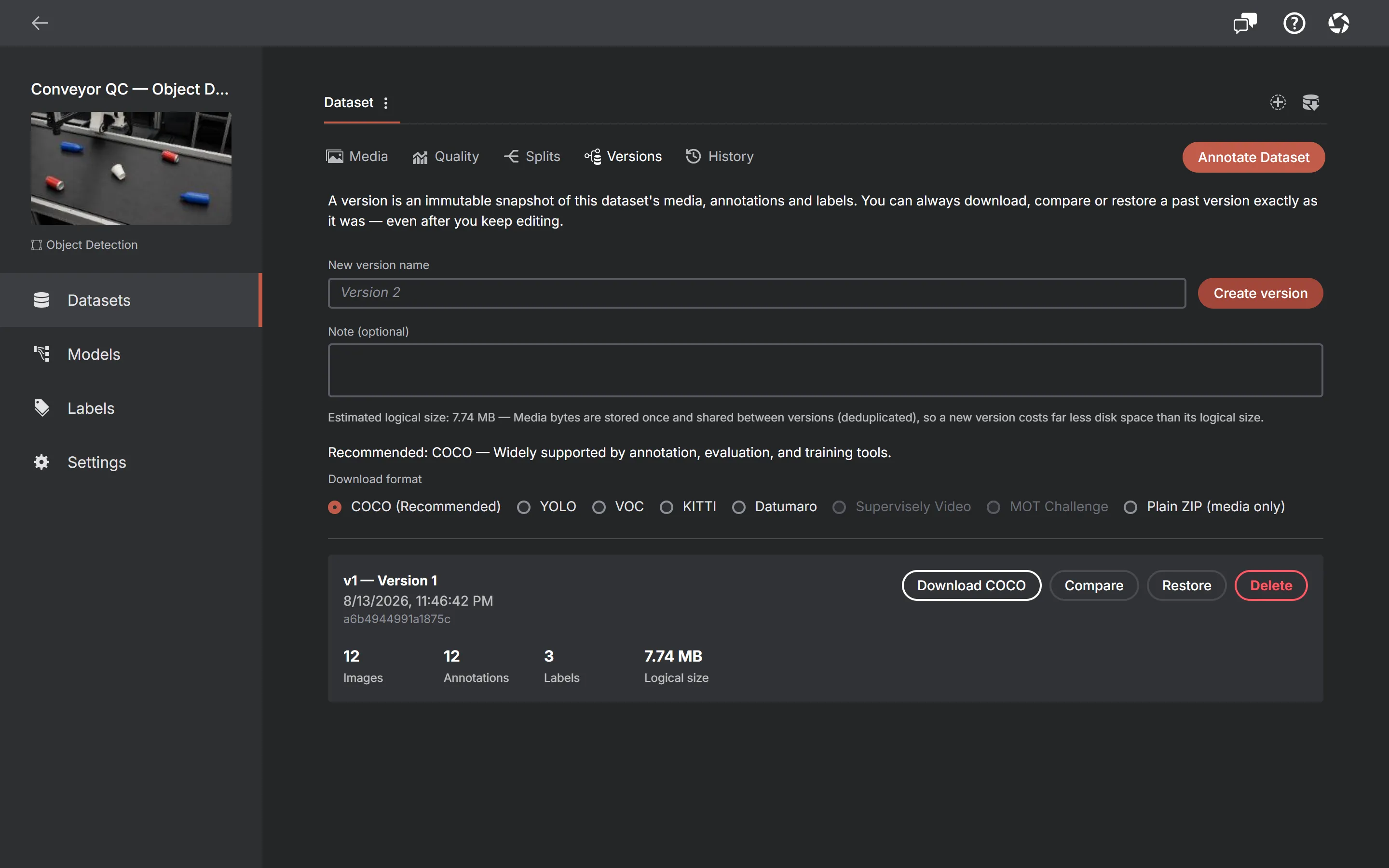
Versions are included at no cost. They live on the device with everything else, though, which makes them a working history rather than a backup. See "Project backup and portability".
Activity history
The History tab is a read-only, append-only record of what happened: projects and datasets created, renamed, copied and deleted; media imported, edited and deleted; annotations added, edited and removed; labels created, renamed, updated and deleted; splits applied; versions created, restored and deleted. You can scope it to one dataset or the whole project, and filter by kind — annotations, media, datasets, labels, versions.
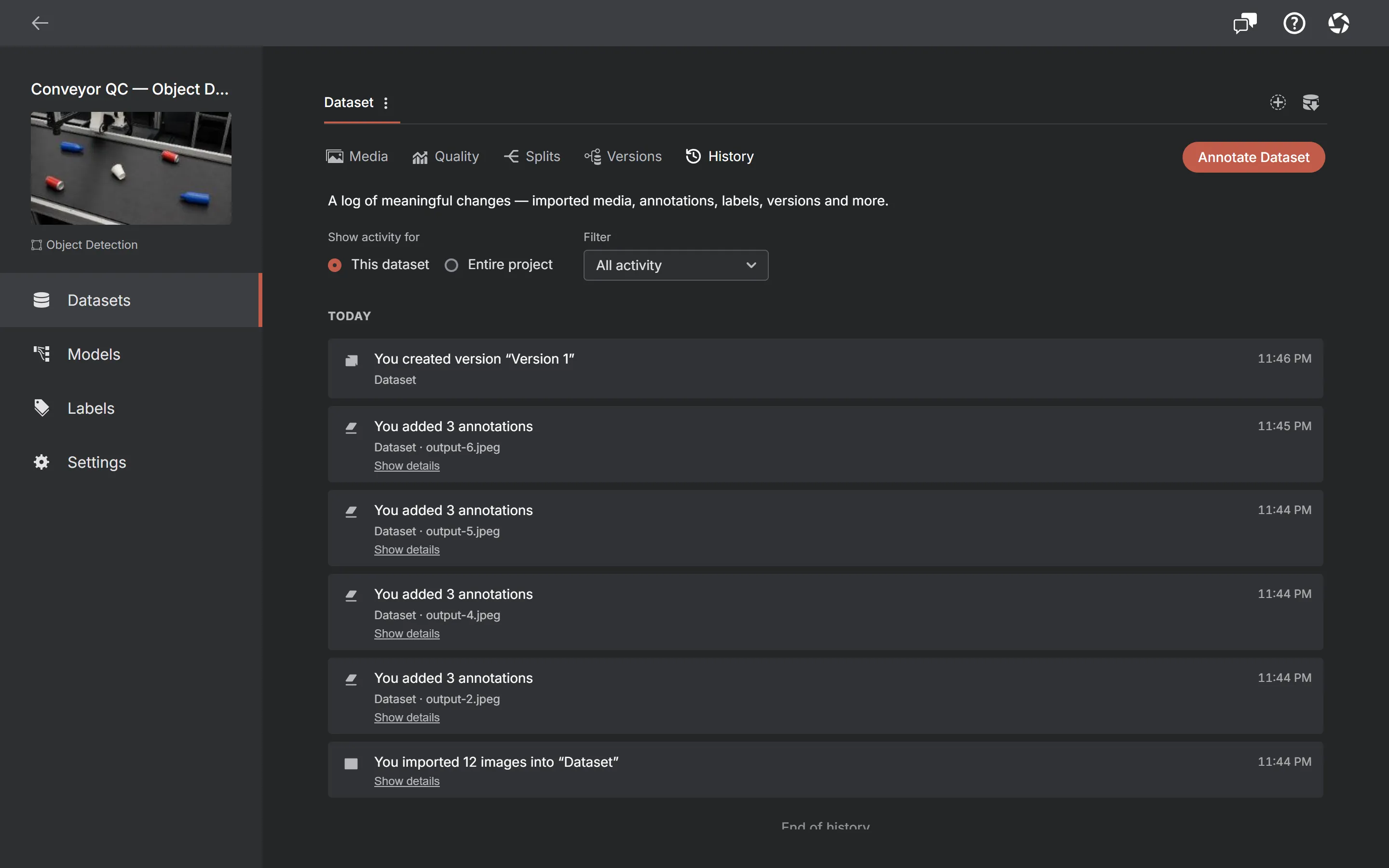
It is written after an operation has committed, so it records what actually happened rather than what was attempted. It exists because a local-first app has no server log to consult when you come back on Monday wondering what you did on Friday.
Copying a dataset
The dataset tab menu can duplicate a dataset, with or without its annotations — a useful move before a risky bulk edit, or to keep a clean holdout set aside. The copy runs with a progress dialog and can be cancelled, in which case it rolls back completely rather than leaving a half-populated dataset behind. The new dataset records one history event naming what it was copied from; from then on the two are independent.
Several datasets in one project
A project starts with one dataset and can hold several — a training set and a holdout, say. Every dataset in a project shares the project’s task, labels and attribute definitions, and each has its own media, split, versions and history. Six show as tabs; any beyond that move into a picker.