Auto-annotation: curated detection and segmentation models
Auto-annotation models are ready-to-use ONNX detectors and 2 instance-segmentation families that AnnotateIt exports, verifies and hosts, grouped into branded families with a Recommended variant and higher-capacity alternatives where available. You download one from the Models page and set it up inside a matching project; every variant predicts the 80 COCO classes, is Apache-2.0, and runs locally on your CPU. They are distinct from importing your own ONNX, and any predictions they make in a batch run wait in a Pending AI Review queue until you accept them.
Two ways to pre-label, one runtime
AnnotateIt can pre-label with a trained model in two different ways, and they share the same on-device runtime. The first is these curated Auto-annotation families — models AnnotateIt has exported, validated and hosts for you, ready the moment you download them. The second is importing your own ONNX weights, which has its own page. What makes a model curated is not its name or its architecture but that it is one of AnnotateIt’s released checkpoints: a file you supply is always treated as your own model, even when it shares a name or an architecture with a curated one.
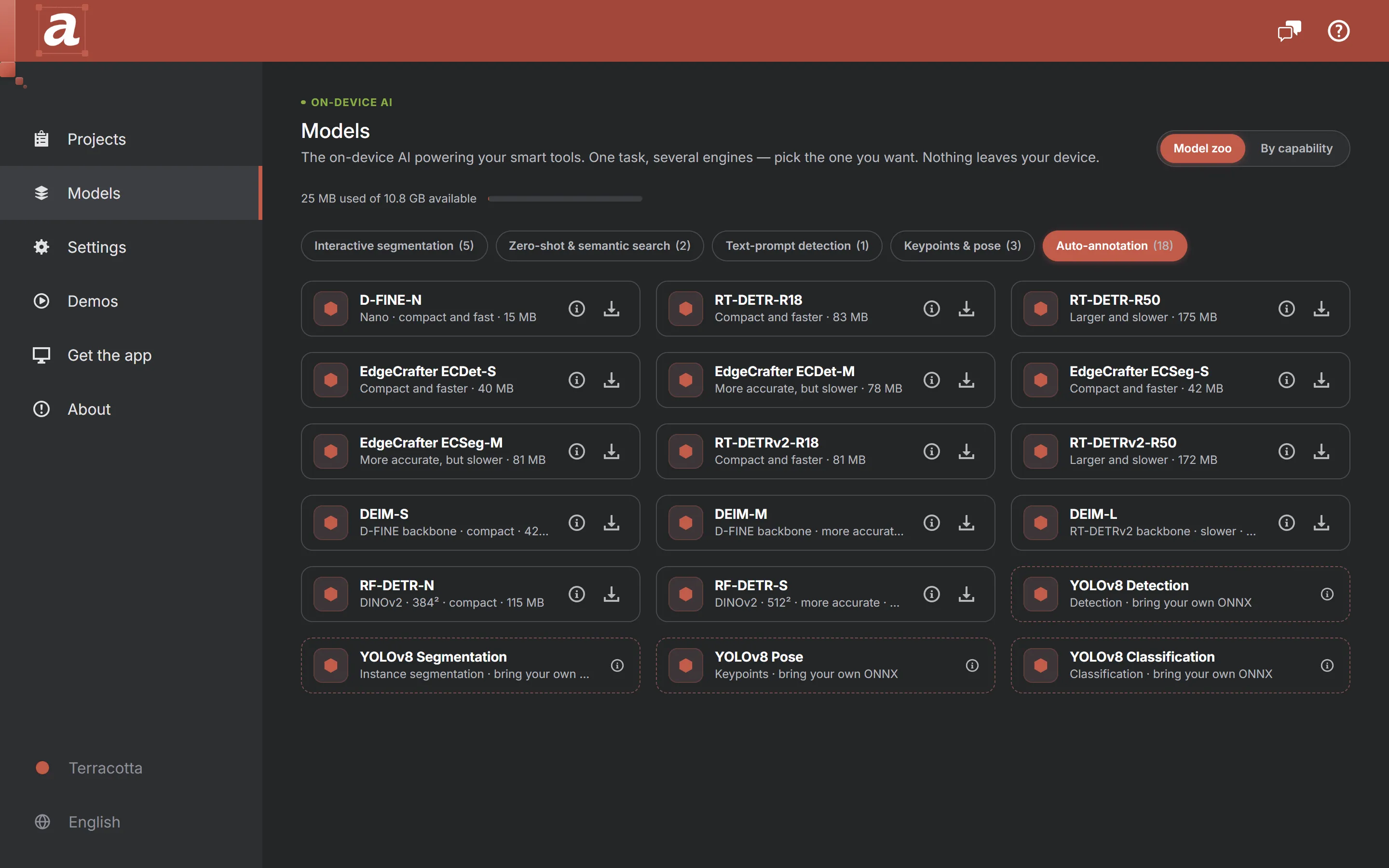
The 8 families
8 families ship, 24 released variants in all. 6 are object-detection families; EdgeCrafter ECSeg and RF-DETR Seg are the curated instance-segmentation families. All predict the 80 COCO classes and are published under Apache-2.0. Each family leads with a compact Recommended variant; higher-capacity alternatives, where available, trade download size and speed for accuracy.
| Family | Task | Released variants |
|---|---|---|
| D-FINE | Object detection · COCO 80 | N (Recommended) |
| RT-DETR | Object detection · COCO 80 | R18 (Recommended) · R50 |
| EdgeCrafter ECDet | Object detection · COCO 80 | S (Recommended) · M · L · X |
| EdgeCrafter ECSeg | Instance segmentation · COCO 80 | S (Recommended) · M · L · X |
| RT-DETRv2 | Object detection · COCO 80 | R18 (Recommended) · R50 |
| DEIM | Object detection · COCO 80 | S (Recommended) · M · L |
| RF-DETR | Object detection · COCO 80 | N (Recommended) · S |
| RF-DETR Seg | Instance segmentation · COCO 80 | N (Recommended) · S · M · L · XL · 2XL |
Download sizes and the exact storage each variant occupies are shown next to it on the Models page, where they come from a manifest at runtime — that is the accurate source, not this page. Recommended identifies the starting variant. Larger variants need more memory and compute; verify their quality on your own images. ECDet-L/X were checked on a small native/browser sample, not a full COCO AP or mobile benchmark.
What "COCO 80" means for your labels
Every curated model predicts from the 80 COCO classes — person, car, dog, bottle and the rest. It does not know your project’s label names, so setting one up includes matching your labels to the model’s classes: your "vehicle" might map to the model’s car, your "worker" to person. A class you do not map is simply left unused, and a project label with no matching COCO class gets no predictions from that model. If your objects are not in COCO at all, a text prompt or your own trained ONNX is the better route — a curated detector finds only what COCO contains.
Curated versus your own ONNX
Curated Auto-annotation
AnnotateIt supplies the weights.
- A model AnnotateIt exported, validated and hosts at a pinned Hugging Face revision.
- One click downloads it; the bytes cache once and any project can pick it up.
- Ships a verified configuration — resize, normalization, tensor names, thresholds — so it is pre-configured, not left to you.
- Presented as a branded family with a Recommended and higher-capacity variants.
- Supported, and ready to use.
Import your own ONNX
You supply the weights.
- Your own trained file, up to 512 MiB. AnnotateIt supplies no weights, only the runtime.
- A five-step wizard: Select, Inspect, Map, Test, Save.
- You pick the parser preset — the YOLOv8 family, RT-DETR, DETR, an RF-DETR-style or EdgeCrafter-style segmenter, or a plain classifier — and confirm it works.
- Belongs to the one project you import it into.
- Experimental, and absent on iPhone and iPad.
Setting one up in a project
Downloading a model makes it available; a short per-project flow makes it usable. Open a project whose task matches the model — a detection project for a detector, an instance-segmentation project for ECSeg — and open the project’s Models tab. A downloaded variant offers "Set up in this project".
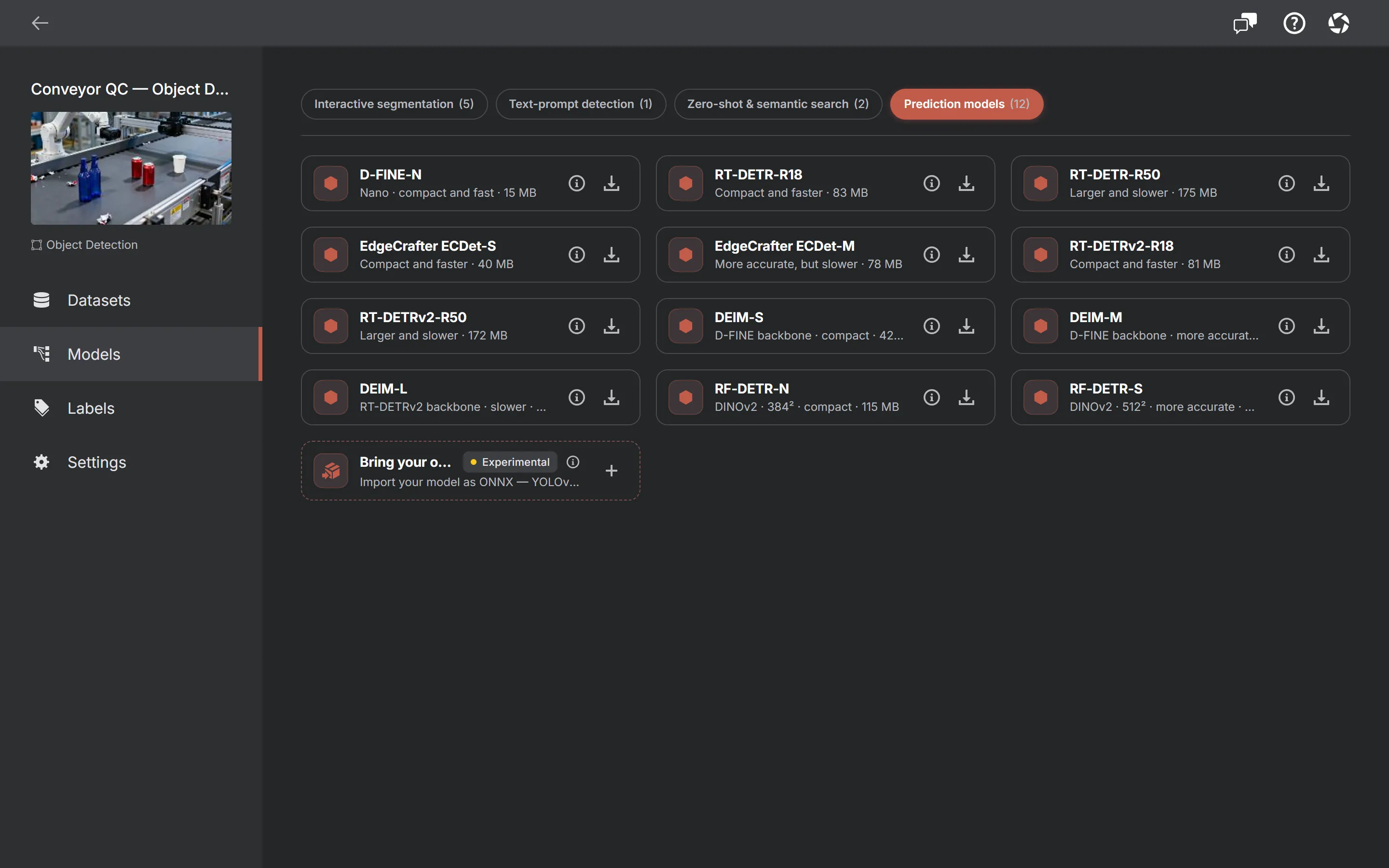
Setup is two steps, run behind an automatic verification pass:
- Match labels — connect each project label to the model’s COCO class. Auto-map by name does the obvious ones; you fix the rest, and unmatched classes are left unused.
- Test — run the model on one of your own images and look at the result. Keeping it from here saves the set-up model as this project’s active prediction source; nothing is committed before a successful test.
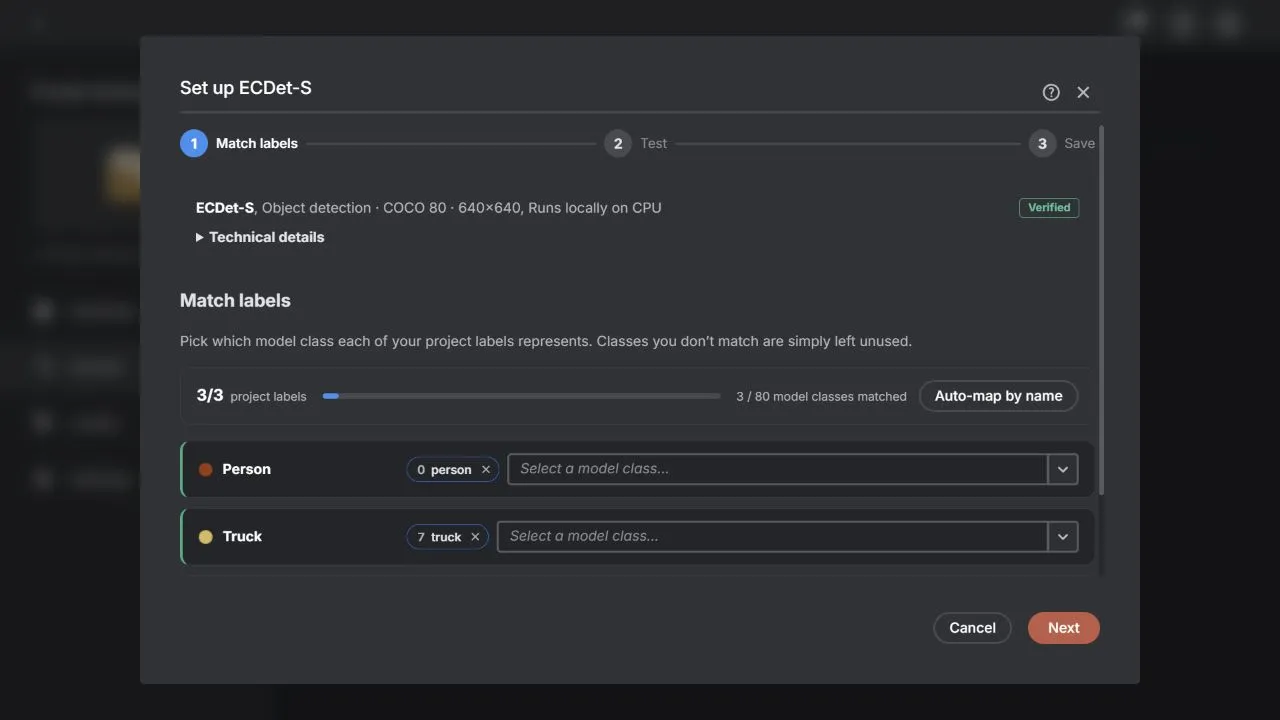
Before the flow even opens, AnnotateIt re-checks the downloaded file on your device against the release’s pinned validation report — tensor names, dtypes, shapes and the class table. A wrong or corrupted download fails that check and the setup flow refuses to open, so a bad file is caught at setup instead of quietly producing mislabelled predictions later. Each curated checkpoint carries its own verified configuration, which is why it needs none of the manual resize or normalization settings an imported model can.
Pre-labelling a whole dataset, then reviewing it
Once a model is set up, Auto-annotate in the dataset toolbar runs it over many images at once — the whole dataset, the current selection, an active filter, or Semantic search results, and either only the unannotated images or everything in scope. It runs strictly one image at a time on your device, saves after every image, survives a single image’s failure, can be cancelled, and resumes an interrupted run after a restart.
Everything it produces is written as a Pending AI Review draft, never as ground truth. The media is marked "needs review", each label is stamped with the model that produced it, and the drafts are held out of exports, frozen dataset versions and dataset statistics until you accept them. A persistent Review button in the dataset toolbar shows how many items are waiting; you accept or reject them in the ordinary annotator, and a later batch run skips pending media rather than overwriting it. The dedicated batch page below covers scopes, score sorting and bulk accept in full.
Everything runs on your device
Every curated model runs locally on the CPU/WebAssembly runtime. The one-time download is the only thing that touches the network; the images, the predictions and the annotations never leave the machine. EdgeCrafter ECSeg is CPU-only by necessity — its segmentation graph produces wrong results on the WebGPU path in the current ONNX Runtime web build, so AnnotateIt keeps it on the CPU — and the detectors run on the CPU too. Because they are ordinary heavy downloads, they follow the same platform rules as the rest of the Models page and are not offered on iPhone and iPad.
Models in the code but not offered
A few other architectures — a DETR ResNet-50, MobileNetV2 and ResNet-50 — stay registered in the app so their download and parsing paths keep working, but they are deliberately not on the released list, so you will not see them offered as Auto-annotation downloads. The 8 families above are the whole surfaced set: 24 released variants, all COCO-80, all Apache-2.0, all local.
Frequently asked questions
- Are the Auto-annotation models trained on my data?
- No. These curated models are pre-trained on the public COCO dataset’s 80 classes and ship as fixed weights. Local annotation does not retrain them. Optional fine-tuning through a configured ML runner is a separate workflow that you explicitly start.
- Do they upload my images?
- No. Each model is a one-time download; after that, inference runs on your device and your images and predictions never leave it.
- Which variant should I pick?
- Start with the Recommended variant in a family — it is the balanced default. Move to a higher-capacity variant when you need more accuracy and your machine has the memory; the Models page shows each variant’s size and a relative speed and accuracy meter.
- How is this different from importing my own ONNX?
- A curated model is one AnnotateIt hosts, verifies and pre-configures for you; importing your own means supplying your own trained weights and configuring them through a five-step wizard. A file you import is never treated as curated, even when it shares a name or architecture with a curated model.
- Can I get instance masks, not just boxes?
- Yes — EdgeCrafter ECSeg and RF-DETR Seg are curated instance-segmentation families that produce polygon masks. The other six curated families are object detectors and produce boxes.